 Digital Space Farmers
Holiday hours on your Google profile, before the customer finds a locked door
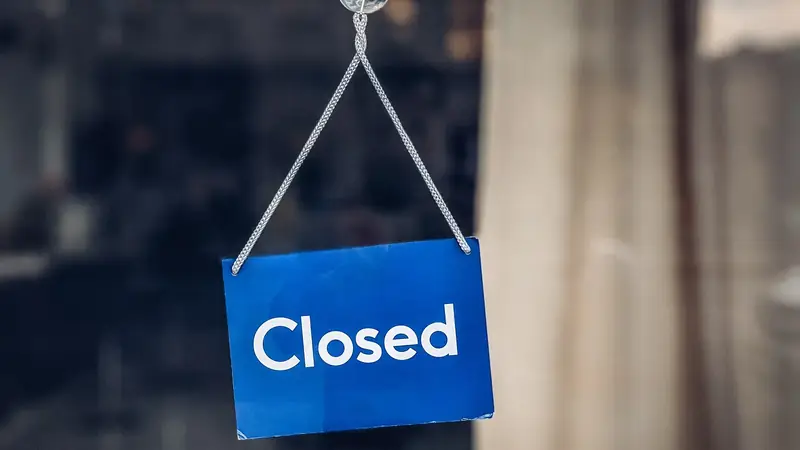
Set "special hours" on your Google Business Profile for every day from Thanksgiving to New Year's Day where your hours change, and confirm the days where they don't. It takes a few minutes per date, and it stops Google from showing a warning that your hours might be different.
Sources checked October 16, 2026, and listed at the bottom. Where this page and Google disagree, Google is right.
The short answer
- Where: your Business Profile, Edit profile, Hours, then next to "Special hours" select Edit and pick or add the date.
- Closed all day: leave the "Closed" box ticked. Open with different hours: untick it and set the times.
- Limits: special hours are for closures of up to 6 days in a row. Closed 7 days or more, or for an unknown time: mark the business temporarily closed instead.
- Confirm the normal days too. Google recommends confirming your hours on official holidays even when they match your regular hours.
- Do it before the date. Google says a warning may appear on your profile on the holidays it lists, and suggests setting special hours in advance.
Why this matters for a service business
When someone finds a plumber, electrician, cleaner or repair shop on Google, the profile tells them in plain words whether you are open right now. If it says "Open" on Christmas Eve and nobody picks up, the caller does not leave a voicemail and wait. They tap the next listing.
The opposite costs you too. If you are actually taking emergency calls on the Friday after Thanksgiving but Google shows a warning that your hours might differ, some people will assume you are closed and never try. Holiday hours are one of the few things on your profile that are entirely in your hands, and they are free to set.
Step by step: set special hours
These are the steps from Google's help page "How to set Special hours". You need to be signed in with the Google account that manages the profile.
- Go to your Business Profile. Searching your business name on Google while signed in usually shows it with an edit panel.
- Select Edit profile, then Hours.
- In the "Business hours" section, next to Special hours, select Edit.
- Pick the date. Google often suggests upcoming holidays: choose Review to confirm one, Add a date for a day of your own (a staff event, an inventory day), or select a date you already added to change it.
- Set the hours. Closed all day: make sure the "Closed" box is ticked. Open with different hours: untick "Closed" and set the times. For a split day (open in the morning, closed for lunch, open again later) select More, then "Add hours +".
- Select Save.
Special hours show to customers on Google only on the days you set them. On every other day your regular hours show as usual, so you do not have to remember to switch anything back.
The rules Google sets
Your main hours must be on first
Special hours only appear if your profile is set to "Open with main hours". If you once chose "Open with no main hours" (some businesses do this to avoid showing any hours at all), special hours will not show. Set your weekly hours first, then the holiday ones.
Six days in a row, at most
Special hours cover a business that temporarily adjusts its hours or stays closed for 6 days in a row or fewer. If you shut for 7 days or more over the holidays, or you do not know when you will reopen, Google's instruction is to mark the business as temporarily closed instead. Remember to reopen it when you are back.
No more than 24 hours in one set
One set of special hours cannot run past 24 hours. If you are open overnight, for example taking emergency calls from 7 PM on Thanksgiving to 5 PM the next day, Google says to split it into two sets: one ending at midnight on the first date and one starting at midnight on the next. Google also says your regular hours for that next day are then ignored, so add them back in the special hours if you still keep them.
Many locations: use the spreadsheet
If you manage several locations, Google's bulk upload sheet has a "Special hours" column. Each date and its hours go in a format like YYYY-MM-DD: HH:MM-HH:MM, an "x" marks a day closed all day, and several sets are separated by commas. Google warns that columns you leave blank but keep the heading for will erase what is already there, so for an existing business upload only the store code and special hours columns.
The 2026 holiday dates Google flags
Google keeps a list of holidays per country on its page "About holidays on Google". On these dates a warning may appear on your profile saying your hours might differ, unless you set or confirm special hours. For the United States, the dates Google lists from November 2026 to New Year's Day are:
| Date | Holiday as Google names it |
|---|---|
| November 11, 2026 | Veterans Day |
| November 26, 2026 | Thanksgiving |
| November 27, 2026 | Black Friday (plus state holidays in several states) |
| December 24, 2026 | Christmas Eve |
| December 25, 2026 | Christmas |
| December 26, 2026 | Boxing Day (listed for NC, SC and TX) |
| December 31, 2026 | New Year's Eve |
| January 1, 2027 | New Year's Day |
Google's page also lists state-only holidays (for example in Georgia, New Mexico, Iowa and Washington around Thanksgiving). Check the page itself for your state; the list changes year to year and Google's page is the one that counts.
A plan for the season, in one sitting
The easiest way to get this right is to decide every holiday date once, in October or early November, and enter them all in one go.
- Write down your real plan per date, with whoever covers calls. Closed, open short hours, or open as usual. Be honest about emergency calls: if you only answer emergencies, set the hours you actually answer the phone.
- Enter every date in Special hours, including the ones where you are open as usual (tick nothing closed, enter your normal hours). That confirms them, which is what Google recommends.
- Check the closure length. More than 6 days in a row? Use temporarily closed for that stretch, and put a reminder in your calendar to reopen.
- Match your other places. Your website, your voicemail greeting and any other listing (Apple Maps, Bing, Facebook, Yelp) should say the same thing. A customer who sees two different answers has no way to know which one is true. Our guide on keeping your name, address and phone the same everywhere covers the other listings.
- Tell people once. A Google post a week before Thanksgiving saying when you are open is a simple way to put it in front of searchers. See what to put in a Google Business Profile post.
The website side
Your website should say the same holiday hours as your profile. Two places matter:
- The page people read. A one-line notice near the phone number ("Closed December 25. Open December 26, 9 to 1.") does more than a banner nobody reads. Take it down after New Year.
- The data Google reads. If your site uses LocalBusiness structured data, Google's documentation says to use
openingHoursSpecificationwith bothvalidFromandvalidThroughto define seasonal hours, and to show a day closed all day by setting bothopensandclosesto "00:00". Leaving outvalidFromandvalidThroughmeans the hours are valid year-round. Our guide to LocalBusiness structured data explains the rest of that markup.
If someone else built your site and you are not sure what it tells Google, our free Instant Website Score reads your page and your Google listing signals and shows what it finds.
Hours for one service only: "More hours"
Some businesses run a service on different hours from the main shop, such as pickup or drive-through. Google's "More hours" setting is for that: you select the hours for specific services such as delivery, takeout, drive through and pickup. Google says More hours don't display until you set regular hours, should generally sit inside your main hours, and each type is set on its own. More hours are not a replacement for special hours: a holiday closure still goes in Special hours.
Questions people ask
How do I add holiday hours to my Google Business Profile?
Open your Business Profile, select Edit profile, then Hours. Next to "Special hours" select Edit, pick or add the date, set it closed or enter the hours, and save. The hours show on Google only on that date.
Why don't my special hours show on Google?
Special hours only appear when your profile is set to "Open with main hours". If you chose "Open with no main hours", set your weekly hours first and then add the holiday dates.
We close for two weeks over Christmas. Can I use special hours?
No. Special hours are for up to 6 days in a row. For 7 days or more, or an unknown time, Google says to mark the business as temporarily closed, then reopen it when you are back.
Do I need to set holiday hours if we're open as usual?
Google recommends confirming your hours on official holidays even when they match your regular hours, so customers know they are right. On the holidays Google lists, a warning that your hours might differ may appear otherwise.
How do I set overnight holiday hours?
Split them into two sets: one ending at midnight on the first date and one starting at midnight on the next. One set of special hours can't run past 24 hours, and the next day's regular hours are ignored, so add them back if you keep them.
The rest of the season (an offer post, honest holiday deals, gift certificates, reviews) is in holiday-season marketing for a local service business.
Want the rest of your profile checked as well? Run through our Google Business Profile checklist, or ask us to look at it with you.
Sources
- Google Business Profile Help: How to set Special hours
- Google Business Profile Help: About holidays on Google
- Google Business Profile Help: Edit your business hours
- Google Business Profile Help: How to set More hours
- Google Search Central: Local business (LocalBusiness) structured data
Ask for a free audit More guides
Or call (346) 472-0629.
Check your own business
- Free Growth Audit: type your web address and get a score out of 100 in about 30 seconds, with what to fix first. No sign-up.
- Google Business Profile checklist: Tick off what your listing has and see what is missing.
- Google Business Profile help: What we set up and keep up on your listing, and what stays yours.
Want our guides to show up first when you search Google? Pick us as a preferred source.
Add Digital Space Farmers as a preferred source on Google Moving your business? What to do with your Google profile
 Google profile attributes: the yes/no facts to set right
 Garage door companies and Google Advanced Verification
See where your site stands.
Free, about 30 seconds, no email needed.
Get your Instant Website ScoreOr ask for the full audit, done by a person.